01Taking readings on a mix
The routine never changes, and that is the point — every mix gets read the same way, so every number means the same thing.
Step 1 — Put a sample on a board. Move some of the fresh mix onto a flat board where you can get at it from above.
Step 2 — Push the probe all the way in. The sensor reads the mud packed around the tines.
cautionIf the probe is not fully buried, part of what it reads is air, and the number comes back wrong.

Step 3 — Press READ. The reading takes about three seconds. Keep the probe still until it finishes.

Step 4 — Move to a fresh spot and read again. Pull the probe out, move to a part of the sample you have not read yet, and seat it a little deeper than last time. Press READ.
Step 5 — Read a third time. Fresh spot again, a little deeper again. On the third reading the sensor shows its combined number for the mix.
02When it says READ AGAIN
READ AGAIN is the sensor doing its job. One of your readings landed well away from the others, so instead of a combined number it shows an amber READ AGAIN prompt — the readings do not agree well enough to trust, and it will not hand you a number it does not stand behind.
Take the extra reading. Do not treat the disagreement as the answer — it usually means the probe was not all the way in on one of the reads, or it landed on a rock. Fresh spot, all the way in, hold still, and let it finish.
- Fresh spot: did you move to a part of the sample you have not read yet?
- All the way in: was the probe fully buried, or was part of what it read air?
- Hold still: did you keep the probe still until the reading finished?
noteA mix takes five readings at most. After the fifth, the sensor stops accepting them and prompts you to move on to the next mix.
03Powering off between mixes
Shut the sensor off whenever you are done with a mix. That is how it is meant to be used, and it saves the batteries.
When you power it back on for the next mix, it reconnects to the app on its own — as long as the app is still running in the background on the phone. There is nothing to tap and no pairing to redo.
For the owner
The rest of this page happens at a desk, not over a board — the account, the updates, and the mix designs your readings get scored against.
04Setting up the account
The owner creates one SlumpScan account and shares it with whoever is mixing. Crew members do not need their own logins — everyone works from the same account, so the jobs, mixes, and readings all land in one place.
noteSince that login gets handed out, pick a password you are comfortable sharing with your crew. Do not reuse a password you use anywhere else.
05Updating the sensor
Sensor updates arrive through the app. Open Settings and find the SlumpMeter device panel — with the sensor connected, the app checks for a new version on its own.
If there is one, the panel reads Update available with the version number. Tap Install and leave the sensor powered on and near the phone while it runs. When it finishes, the app shows Update complete — device is restarting, and the sensor comes back on the new version a few seconds later.
SlumpScan is a new company and the sensor is under active development. Expect updates fairly often for a while — most of them improve how the sensor reads and scores your mixes.
06Mix designs
A mix design is the recipe you are batching — what goes in and in what proportion. When the app knows which design you are running, it scores each reading against where that mix should be — not against a generic curve.
Starting a mix opens a New mix dialog. Designs you have run before appear under Go-to mixes — pick one and tap Save mix. For a recipe you have not used yet, tap Build from scratch and enter what goes into it; the app works out the ratio and keeps the design in your list for next time.
Once a design is set, the job shows it under Mix details instead of “Not set”, it stays attached to that mix, and every reading you take is scored against it.
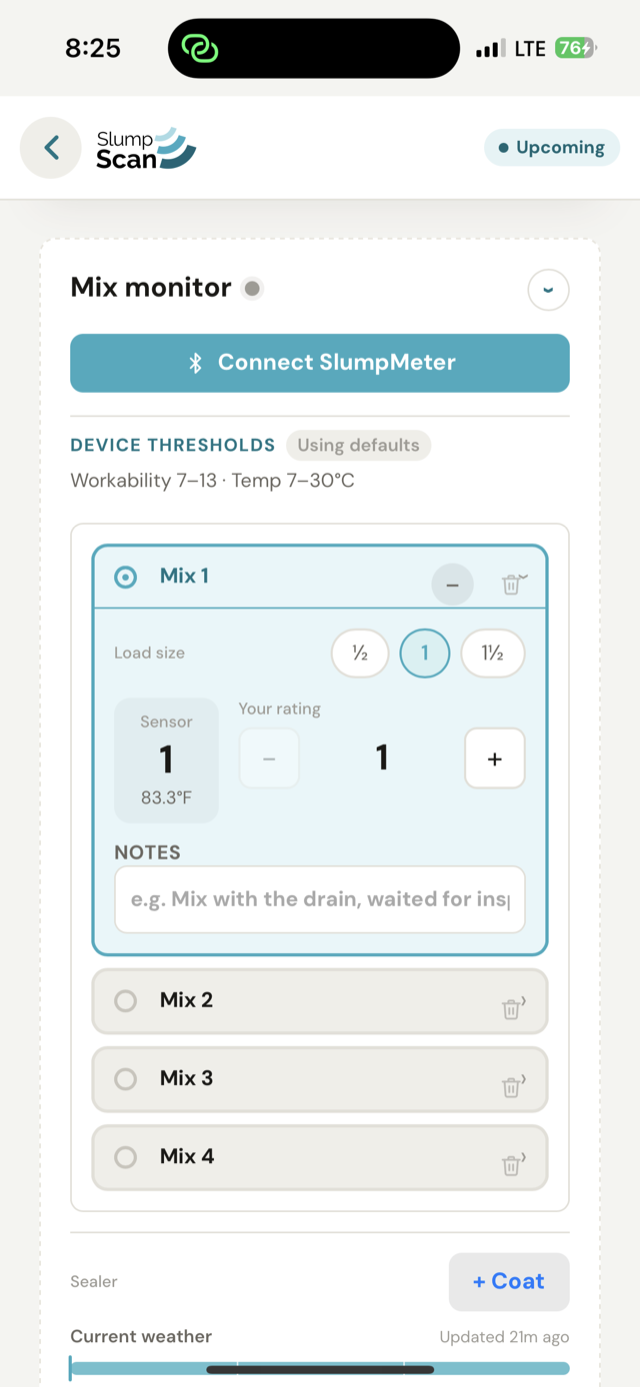
07Mix Monitor
Mix Monitor is the screen the app connects to the sensor from, and where your readings show up as you take them. If the sensor is off or out of range, this is the screen that tells you.